Guide
How to Make a Product Walkthrough Video
By John Mikhail · Updated · 9 min read
A product walkthrough video shows one person doing one job in your product, start to finish, in the order they would actually do it. It is not a highlight reel of features and it is not a 30-second launch trailer. Good ones run two to five minutes, answer a specific question, and get watched to the end. Here is how to make one in an afternoon, using whatever recorder you have, with notes on where Recordio automates a step.
Walkthrough, demo or tutorial?
People use the words interchangeably, and the differences matter for how you script it.
- A demo is for someone deciding whether to buy. It leads with the outcome and skips the setup.
- A tutorial is for someone learning a skill. It explains why, not just where to click.
- A walkthrough is for someone who has decided and now needs to get something done. It follows the real sequence of screens, at the real pace, with nothing skipped.
Walkthroughs are the most useful of the three and the least glamorous. They live in onboarding emails, help centre articles, release notes and support replies, and they get watched for months.
Before you record
Pick one job
"Set up your first project" is a walkthrough. "An overview of the dashboard" is not, because there is no end state. If you cannot finish the sentence "by the end of this video you will have..." you have not picked a job yet. One job per video; make three short videos rather than one long one.
Write the beats, not a script
A word-for-word script makes you sound like you are reading. Instead, write one line per screen: what you are about to do and why it matters. Five to eight beats is typical. Read it once, then record from memory. Here is the skeleton we use:
Title: How to [job] in [product]

1. Hook (5 s): "By the end of this you'll have [end state]."
2. Where to start: which page, which button.
3. Beat 1: [screen] – what you do, the one thing to notice.
4. Beat 2: [screen] – what you do, the one thing to notice.
5. Beat 3: [screen] – the step people get wrong, and why.
6. Result: show the finished thing working.
7. Next step (5 s): "Next, [related job]" and where to find it.
Prepare the account
- Use a demo workspace with realistic but fake data. Real customer names in a walkthrough are a problem you will discover later.
- Set the browser window to a consistent size, around 1440 pixels wide, so zooms and frames look the same across your videos.
- Close other tabs, silence notifications, and log out of anything that could pop up. Recordio's simplified toolbar hides bookmarks and tabs from the recording, but a Slack notification is still a Slack notification.
- Do the job once without recording. Every walkthrough that goes wrong goes wrong on a step the presenter had not done in a month.
Recording it
Start on the first screen the viewer will see
Not your admin dashboard. If the job starts from an email link, start from the email. Say the hook in the first five seconds and then start clicking.Narrate what you are doing and why, in that order
"I'm opening Settings because the export option lives here" beats "Now I'm clicking Settings." Speak a little slower than feels natural; pauses are fine because they will be cut.Let the viewer see the click
Move to the control, pause for half a second, then click. On a raw recording this is what makes the action readable on a phone. In Recordio, auto zoom frames the input, card or menu you use, and auto spotlight lifts it off the page, so the pause can be shorter.Keep going when you make a mistake
Say "let me do that again," repeat the step, and carry on. You will cut the fumble later. Stopping and restarting produces a worse video than a clean edit.Show the result
The end state is the payoff. Show the exported file, the sent invite, the published page. Then say the next job and stop. No summary of what you just did.
Editing: what to cut and what to add
Editing is where walkthroughs die, because there is always another hour of it. Limit yourself to five things.
- Cut the silence. Page loads, thinking pauses, the fumble in step 4. Recordio's Smart AutoCut does this automatically and keeps the pauses where you were typing or clicking, so an action never gets cut in half.
- Check the zooms. Every zoom should land on the control being used. In Recordio each zoom is a keyframe on the timeline; drag or delete any that miss.
- Add captions. A lot of people watch on mute at their desk. On Recordio Pro, AI captions arrive with word-level timing; fix a word in place, or delete a caption line to cut that segment of video.
- Blur what should not be there. API keys, email addresses, the one real customer that slipped into the demo data.
- Frame it, once. A device frame and a background make a customer-facing walkthrough look intentional. Pick one style and reuse it so your help centre looks consistent.
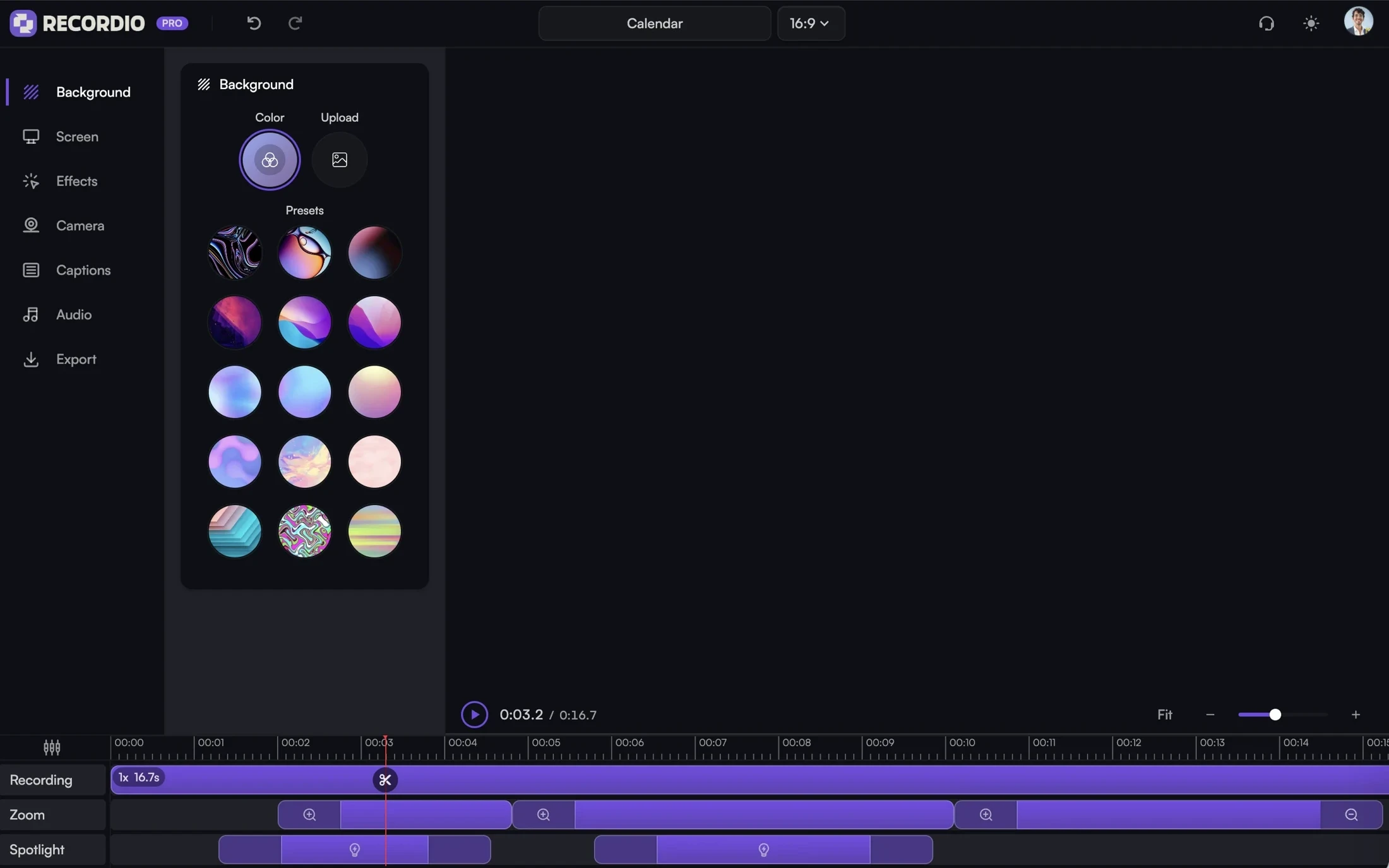
Anything beyond those five (music, transitions, animated arrows) adds time and rarely adds understanding. Skip it unless the video is going on a landing page.
How long should a product walkthrough video be?
| Kind of walkthrough | Target length | Where it lives |
|---|---|---|
| One setting or feature | 45 to 90 seconds | Help article, support reply, release notes |
| One job with several steps | 2 to 4 minutes | Onboarding email, in-app help, docs |
| First-run setup, end to end | 4 to 6 minutes | Welcome email, onboarding checklist |
| Anything longer | Split it | A playlist of short videos in your library |
Watch time falls off a cliff after about three minutes for anything the viewer did not choose to watch. If Recordio's view analytics show people dropping at 40 percent, the fix is usually to cut the video in two at that point, not to make it better.
Sharing and measuring
A walkthrough should end up as a link, not a file. Files get emailed once and lost; links get reused, embedded and updated. On Recordio Pro, every recording gets a public watch page and a share link with view counts and watch time, and it sits in a team library with roles, so support can find the video product made last month instead of recording it again. Viewer seats are unlimited; only the people who record need a paid seat.
Put the link where the question is asked: the help article for that feature, the onboarding email for that step, the saved reply in your support tool, the changelog entry. Then check the analytics after two weeks. A walkthrough with a hundred views and a 30-second average watch time on a four-minute video is telling you the hook or the length is wrong.
Five mistakes that make walkthroughs unwatchable
- Starting with a tour. "This is the sidebar, this is the header." Start with the job.
- Recording the whole screen at native resolution with no zoom. Text is unreadable on a phone and the viewer stops.
- Leaving in the fumbles. Two minutes of "hang on, where is it" is two minutes of people leaving.
- No captions. You lose everyone watching in an open office.
- Sending a file. It cannot be updated when the product changes, and you never learn whether anyone watched it.
The checklist
- One job with a clear end state
- Five to eight beats written down
- Demo workspace, notifications off, window sized
- Dry run done
- Recorded from the viewer's first screen, hook in the first five seconds
- Silence cut, zooms checked, captions on, sensitive data blurred
- Under four minutes, or split
- Shared as a link where the question gets asked
- Analytics checked after two weeks
If you want to see the recording side in detail, the Chrome screen recorder page shows how tab recording powers auto zoom, and there are step-by-step guides for recording on Mac, Ubuntu and Chromebook. For picking a tool, read our guide to tutorial recording software. Teams coming from Loom can see what changes on the Recordio vs Loom page.